How to connect Telegram to BG Space
A connected Telegram is how you stop missing your games. The bot writes to you when a tournament round starts, who your opponent is and which table to play at, how much time is left to finish a match and who won. That is all it does: it cannot see your games and cannot play for you.
Connecting takes a minute and is done once.
What you need
- an account on bgspace.games;
- Telegram with a username set (@username). Without one the bot cannot recognise you — how to set it is in "If something went wrong" below.
Step 1. Open your profile
Top right, tap the person icon.

On a phone it is in the same place:

You should see: the "Profile" window with your nickname, email and stats.
Step 2. Find the "Telegram username" row
Scroll the profile down — under the statistics there is a row saying "Not connected". Press the "Connect" button to the right of it.
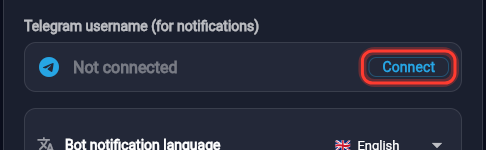
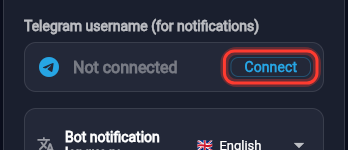
You should see: the "Not connected" text replaced by an input field.
Step 3. Type your Telegram username
Type the name you have in Telegram — the one starting with @. You do not need to type the @ itself, it is already there. Then press the green tick.
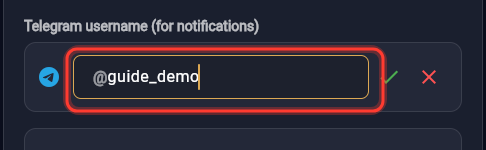
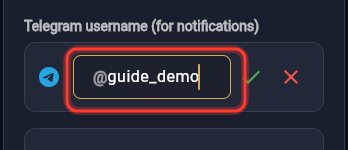
Important: the name must match the one in your Telegram letter for letter. Type someone else's name or make a typo and the bot will refuse, and you will have to start over.
You should see: a blue card, "Confirm in the bot".
Step 4. Press "Open Telegram"
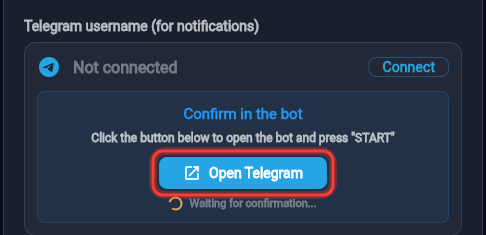
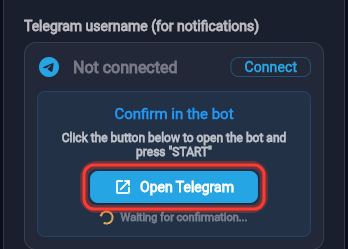
You should see: Telegram opens with the chat of @backgammon_verify_bot. Do not close the website page — it waits for the answer by itself.
Step 5. In Telegram, press "START"
You should see: the button disappears and the bot replies.
Step 6. The bot confirms it recognised you
The reply looks like this:
✅ Your Telegram account is verified! Go back to the site — registration will finish on its own. 🎲
Step 7. Go back to the site and press "Finish connection"
The site notices the bot's answer within a few seconds on its own — no need to refresh. Instead of "Waiting for confirmation…" a green "Finish connection" button appears.
Without this step nothing is saved. The bot already knows you, but the site records the link only after you press the button.
Step 8. Done
In your profile, instead of "Not connected" there is now your name with an @.
Which language the bot writes in
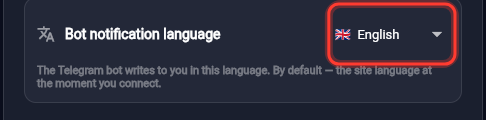
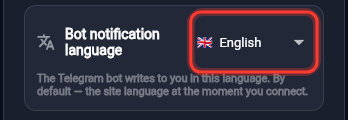
In the same profile, slightly lower, there is a "Bot notification language" row. By default the bot writes in the language you were reading the site in when you connected — you do not have to do anything. The choice stays yours though: you can play in English and get notifications in Ukrainian. If you have already picked a language by hand, that one stays.
What will arrive in Telegram
| When | What is in the message |
|---|---|
| A tournament round starts | tournament name, opponent, game type, stake |
| Your pairing is ready | opponent and what you are playing |
| The time to play a match is running out | how much is left and by which hour to play |
| Final and win | who won, what the prize is |
| A new tournament and a registration reminder | name, format, buy-in |
| Shvets table summary | how many rounds and your result |
| A support reply | the text of the answer |
There is no switch for turning off one kind of message: either the bot is connected and writes about all of the above, or it is not connected.
If something went wrong
The bot says you have no username
❌ Your Telegram account has no username.
This is the most common reason. In Telegram open Settings → Edit profile → Username and pick a name for yourself (Latin letters and digits). Then come back to the site and start from step 2.
The bot says the name does not match
❌ Your Telegram username (@…) does not match the one given on the site (@…).
You typed one name on the site and pressed START from a different Telegram account (or made a typo). Go back to the site, press "Change" again and type the name you see in your own Telegram.
The bot says the code is invalid or already used
❌ This verification code is invalid or already used.
The link lives for 30 minutes. If you opened it later, just start from step 2 — the site will issue a new one.
I pressed START and nothing changed on the site
The site checks the bot's answer every few seconds, but only while the profile page is open. If you closed it, open the profile and go through steps 2–4 again; the bot already knows you, so it is quick.
The bot does not reply at all
Check that you opened exactly @backgammon_verify_bot, and that the bot is not blocked in your Telegram (Settings → Privacy → Blocked users).
None of this helped
Write to support — the question-mark button in the top bar, next to the profile icon.
How to disconnect or change the account
Switch to another Telegram — press the "Change" button in the profile (it takes the place of "Connect" once an account is linked) and go through steps 3–7 with the new name. The old link is replaced.
Stop receiving messages — block the bot in Telegram itself (open the chat → menu at the top → "Block"). The bot stops writing immediately.
⚠️ After blocking, password recovery through Telegram stops working too — recovery by email remains.
There is no separate "disconnect" button in the app yet. If you need the link removed from the account entirely, write to support.